To set up Parents' Meetings to integrate with your data in Aeries please follow these steps -
Setting up Aeries integration
Note: This section only needs to be followed if you are setting your system up for the first time or your Aeries details have changed. If the integration is already set up please follow the Syncing your data from Aeries section below.
Setting up Aeries
In order to proceed, you need to add Parents' Meetings as a new product in Aeries by following these steps:
- Log into Aeries as an administrator.
- Go to Security > API Security.
- Add a new product.
- Select "Parents' Meetings".
- After adding the product, select it then in the permissions area allow read access to the following:
- Student Data
- Student Programs
- Contacts
- Class Schedules/History
- Scheduling - Teacher Data
- Scheduling - Master Schedule
- Scheduling - Course Data
- Tick Display Certificate Details and copy the certificate.
You should now have access to the following details which you can enter into the relevant fields in Parents' Meetings:
- Aeries web address: the link to the login page for the site.
- The certificate you copied in step 6.
- Aeries schools Code/ID: found via School Info > School Options section.
If you're not sure on any of the steps above, please get in touch with the Aeries support team and they should be able to assist you.
In Parents' Meetings
- Log in to Parents' Meetings as an admin.
If this is the first time you have used the system you will likely be presented with the Getting Started wizard. Alternatively, go to the navigation bar on the left and click Settings, then Data Import Source
and select Aeries from the available School Management Systems:
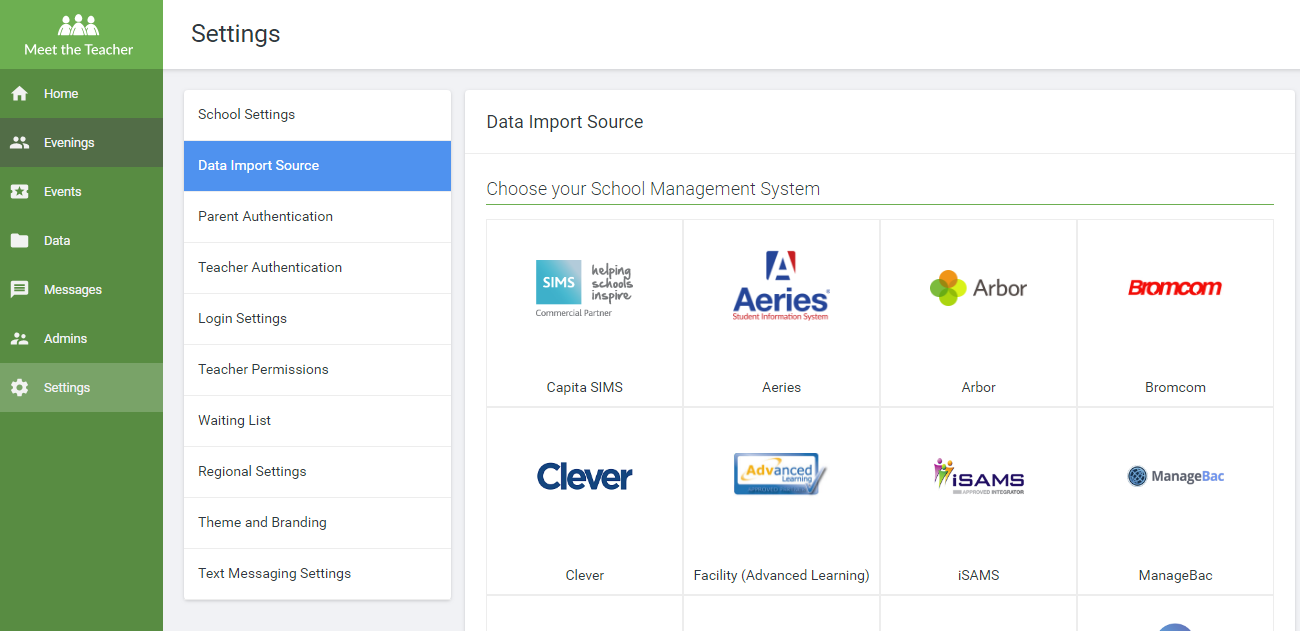
The page will then display a box where you can enter the details which you obtained earlier:
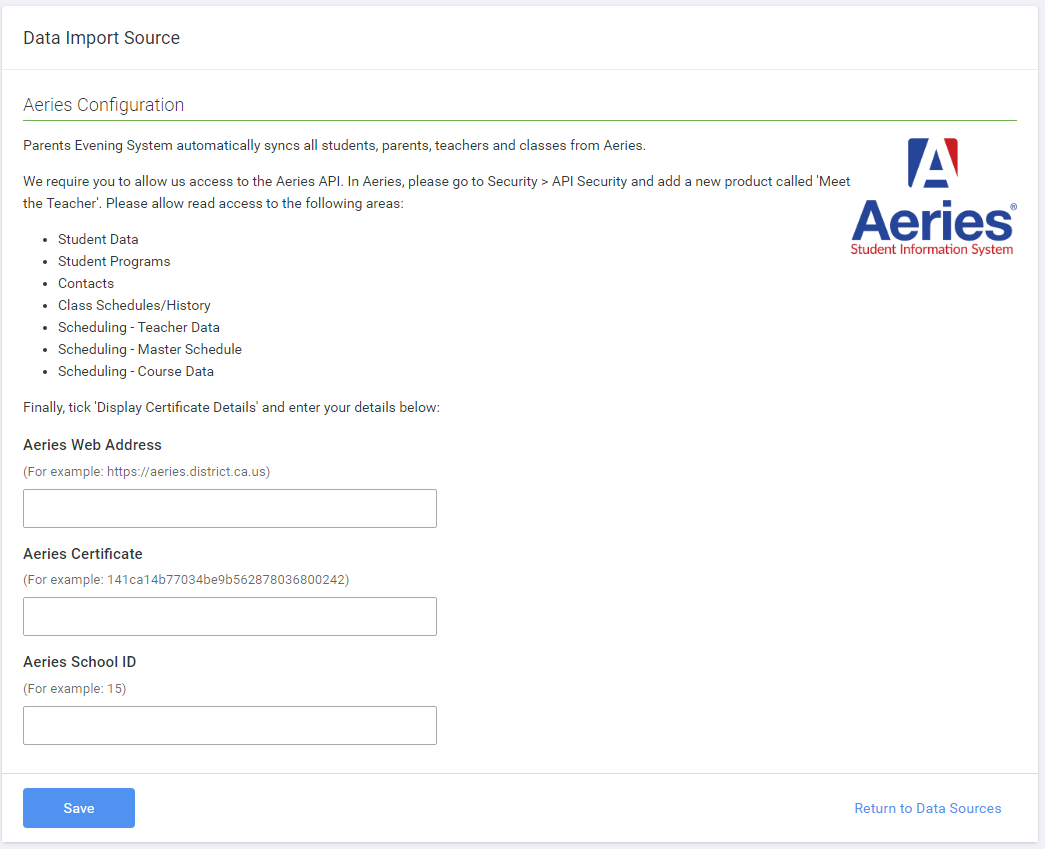
Once you save this information you can run a sync to load the current data from Aeries into your system whenever you need to by following the section below.
Syncing your data from Aeries
Go to the navigation bar, click on Data then the sync button.
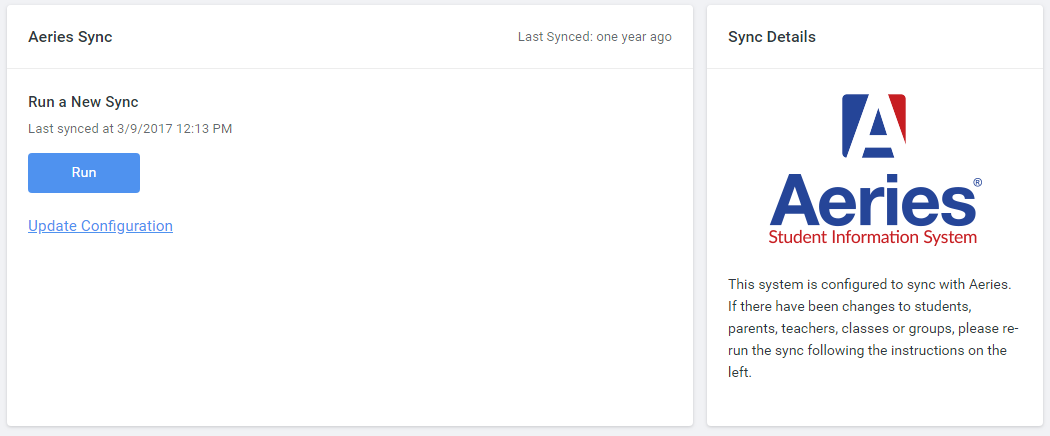
Was this article helpful?
That’s Great!
Thank you for your feedback
Sorry! We couldn't be helpful
Thank you for your feedback
Feedback sent
We appreciate your effort and will try to fix the article