Occasionally you may need to manually add a teacher to your system for some reason. For example, they may be a member of staff that is not in your MIS (and therefore not synced across with your other data) but who you need to be available to take the bookings for a class. Or you may need to edit an existing teacher, to add an email address or department.
If you are not using an MIS and need to add teachers in bulk please see this guide instead.
Adding a Teacher
To add or edit a teacher manually go to the navigation bar on the left of your system and click Data > Teachers > + Add Teacher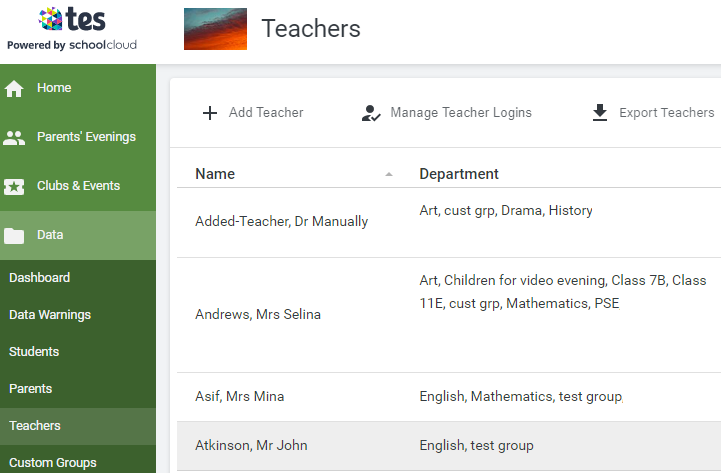 If your school uses a Management Information System you will be asked if the teacher is in that system or not (the example used here is SIMS)
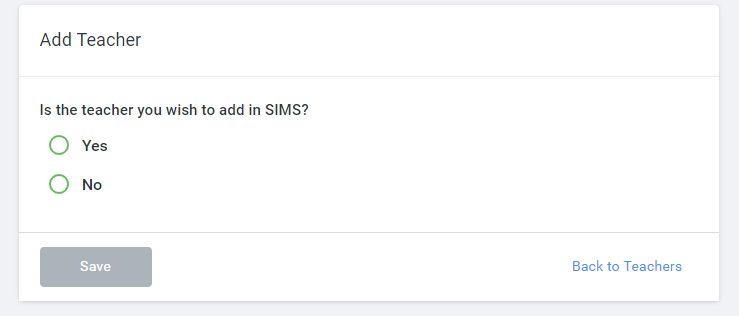 If you choose Yes you will be asked a further question to identify if you would normally expect to see that teacher already in your system - if you choose Yes, please contact us, so that we can assist in identifying why they have not been synced.
If you choose No (or have confirmed that you would not normally expect to see that teacher already in your system) then you are asked to enter the details of the teacher you are adding.
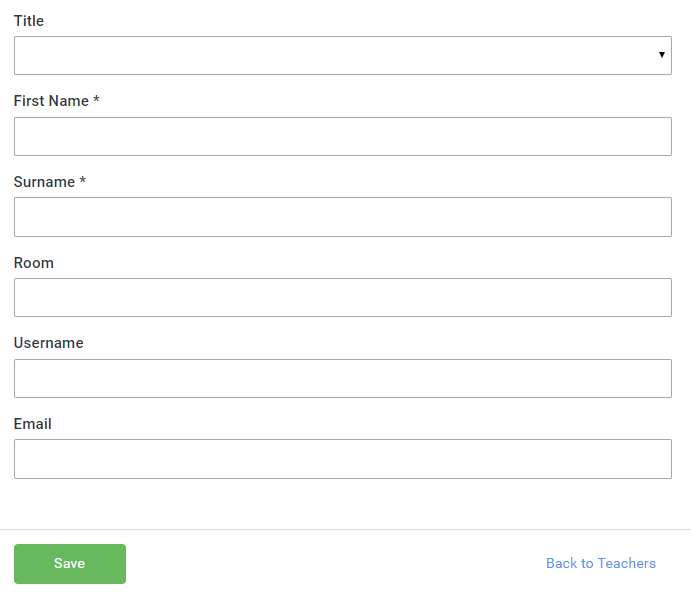 Room, Username and Email are optional.
Once you click Save the teacher is added to your system. You can then use them to take bookings for an already existing class (see this guide) or create a Custom Group to link them to students and add that group to an evening.
Was this article helpful?
That’s Great!
Thank you for your feedback
Sorry! We couldn't be helpful
Thank you for your feedback
Feedback sent
We appreciate your effort and will try to fix the article